Getting Started
Let's discover CryoCloud in less than 5 minutes.
This guide will walk you through creating your CryoCloud accound and setting up your profile requirements to use CryoCloud, how to create an account and set up your profile.
What you'll need
Unless you are reading this on your phone, you already have everything that is needed to analyze your cryo-EM data with CryoCloud: a PC or Laptop, an internet connection and a web browser - that's it!
Signup
Signup is available to everybody!
Free Plan (Academia)
Ideal for students, early-career researchers, and anyone interested in learning about CryoCloud. This plan includes:
• Access to the CryoCloud app

• 3 compute hours per month (monthly reset)

• 500 GB of storage
Use it to explore features, run small datasets (~500 movies), or learn the basics of cryo-EM processing. This plan is not intended for formal software evaluations.
30-Day Evaluation Trial
Designed for organisations actively evaluating CryoCloud for purchase. This trial includes:
•   Access to the CryoCloud app

•   Onboarding and progress check-ins

•   20 compute hours

•   2 TB of storage
Each trial begins with a short call to align on goals and discuss evaluation needs. This trial is best suited for decision-makers in industry or academic groups with purchasing intent.
To get started, follow the sign-up link here. Upon filling out the form, we will approve your account, and you will receive an email with further instructions.
*We will process your request as soon as possible and get back to you within 48h. Please bear with us.*Login & set up your profile
Once your account request has been approved by us, you will receive an email containing a confirmation link. Click the link and then you are ready to log in to CryoCloud using the password you specified.
Know your way around
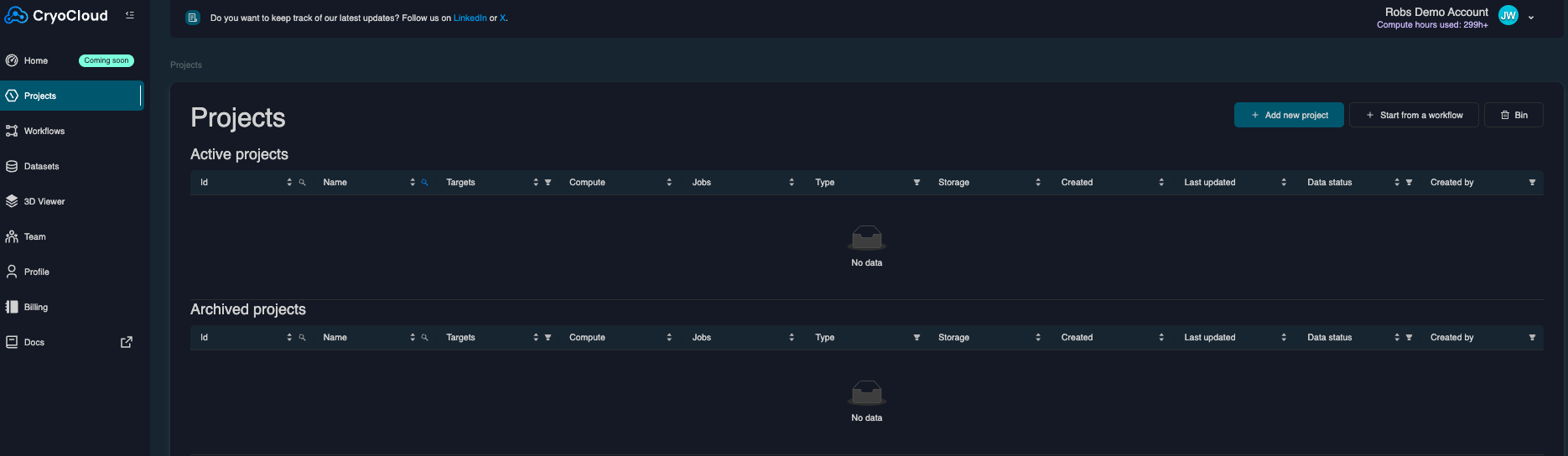
After logging in, you will be welcomed to the CryoCloud dashboard. You will find most relevant views (Projects, Datasets, Teams & Profile) on the tabs on the left.
Update your profile
You can update your account information, password and security settings (2FA) within the profile tab.
Activate 2-Factor Authentication (2FA)
We recommend that you activate 2FA for additional security.
You will need an authenticator app installed on your phone (e.g. Microsoft or Google Authenticator) to activate 2FA. To enable it, go to Profile > Security Settings and enable 2FA. A QR code will will be displayed that you need to scan with your authenticator app.
Stay informed & up to date
We will post informative news, blog posts and feature updates via social media. To get the most out of CryoCloud, make sure to follow us on X, Bluesky and linkedin!